Configuration Guide
Django Control Room offers flexible configuration options to customize its behavior.
Official Site: djangocontrolroom.com.
For access control specifically (locking down the dashboard or install views by group), see Scopes.
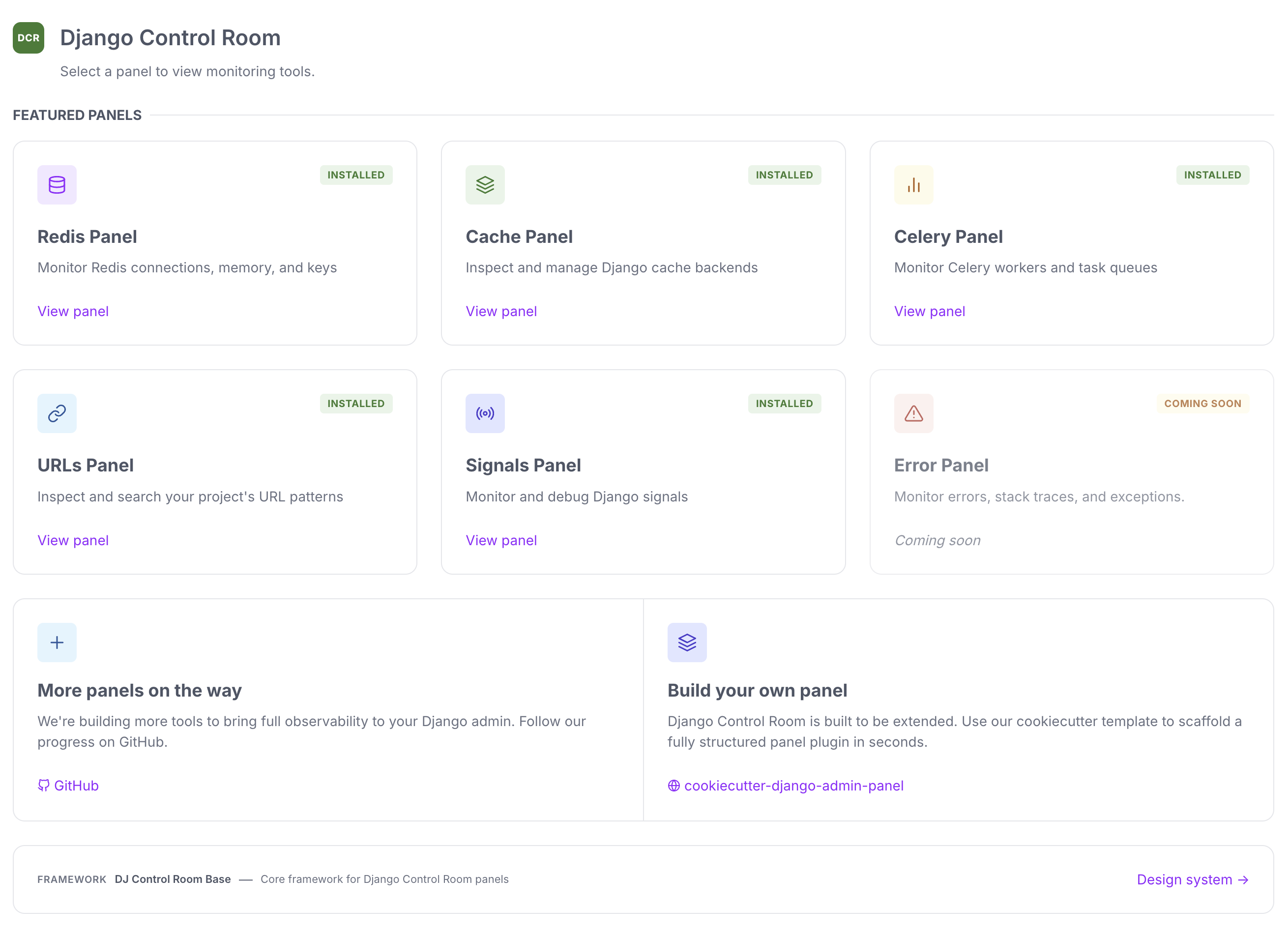
Settings Overview
All Django Control Room settings are configured in your Django settings.py file under the DJ_CONTROL_ROOM_SETTINGS dictionary.
# settings.py
DJ_CONTROL_ROOM_SETTINGS = {
    "REGISTER_PANELS_IN_ADMIN": False,
    "PANEL_ADMIN_REGISTRATION": {},
    "LOAD_DEFAULT_CSS": True,
    "EXTRA_CSS": [],
}
CSS Customization
LOAD_DEFAULT_CSS
Type: bool
Default: True
Description: Whether to load the built-in Control Room stylesheet. Set to False to use your own styles from scratch.
EXTRA_CSS
Type: list[str]
Default: []
Description: Additional stylesheets to load after the default CSS. Accepts static file paths or full URLs.
Static file paths follow the same convention as Django's {% static %} tag: the path is relative to your app's static/ subdirectory, not the filesystem. For example, a file at myapp/static/myapp/css/overrides.css is referenced as myapp/css/overrides.css.
DJ_CONTROL_ROOM_SETTINGS = {
    "EXTRA_CSS": [
        # File lives at: myapp/static/myapp/css/overrides.css
        "myapp/css/overrides.css",
        # Full URLs are also supported (e.g. CDN-hosted theme)
        "https://cdn.example.com/theme.css",
    ],
}
Theme adapters
Django Control Room builds on dj-control-room-base, which ships token-override stylesheets for admin skins that do not match the classic Django admin palette. With the default THEME_AUTO_DETECT = True, panels detect the active skin from INSTALLED_APPS and load either a matching adapter or a general light/dark pin for known unsupported skins (through the same pipeline as EXTRA_CSS). Turn it off to opt out and load an adapter manually:
DJ_CONTROL_ROOM_SETTINGS = {
    "THEME_AUTO_DETECT": True,  # default
    # Or opt out:
    # "THEME_AUTO_DETECT": False,
    # "EXTRA_CSS": ["dj_control_room_base/css/themes/unfold.css"],
}
| File | For |
|---|---|
themes/unfold.css |
django-unfold |
themes/jazzmin.css |
django-jazzmin |
themes/grappelli.css |
django-grappelli |
themes/admin-interface.css |
django-admin-interface |
themes/dracula.css |
django-admin-dracula |
themes/general-light.css |
Light-pin fallback for known skins without a first-class adapter |
themes/general-dark.css |
Dark-pin fallback for known skins without a first-class adapter |
For screenshots, compatibility status, and DIY adapters, see Theme Adapters.
AI Agent Integration (MCP)
Django Control Room ships a single MCP Streamable HTTP endpoint at /admin/dj-control-room/mcp/ that aggregates and exposes every installed panel's tools to AI agents (Cursor, Claude, etc.) in one place, so agents only need to configure one server for your whole admin toolset.
It is disabled by default. All three settings are required to turn it on:
DJ_CONTROL_ROOM_SETTINGS = {
    "MCP_ENABLED": True,
    "MCP_TOKEN": "your-secret-token",  # Bearer token checked on every request
    "MCP_USERNAME": "admin",  # user model identifier (USERNAME_FIELD) whose permissions apply
}
MCP_ENABLED
Type: bool
Default: False
Description: Enables the MCP endpoint. When False, it returns 404.
MCP_TOKEN
Type: str
Default: None
Description: Secret Bearer token clients must send as Authorization: Bearer <token>. Required when MCP_ENABLED is True.
MCP_USERNAME
Type: str
Default: None
Description: Identifier of the Django staff user whose permissions apply to every tool call made over MCP. It is matched against the user model's USERNAME_FIELD, so with the default User model it is the username, while projects using an email-as-identifier custom user model (username = None, USERNAME_FIELD = "email") should set it to the user's email address. There is no fallback to "the first superuser" by design; the user must exist, be active, and be staff.
Each tool call is checked against the originating panel's own scope and SCOPE_PERMISSIONS, exactly as if it were called directly from that panel. See Scopes for details.
Admin Sidebar Behavior
By default, all installed panels appear only in the Django Control Room section of the admin sidebar:
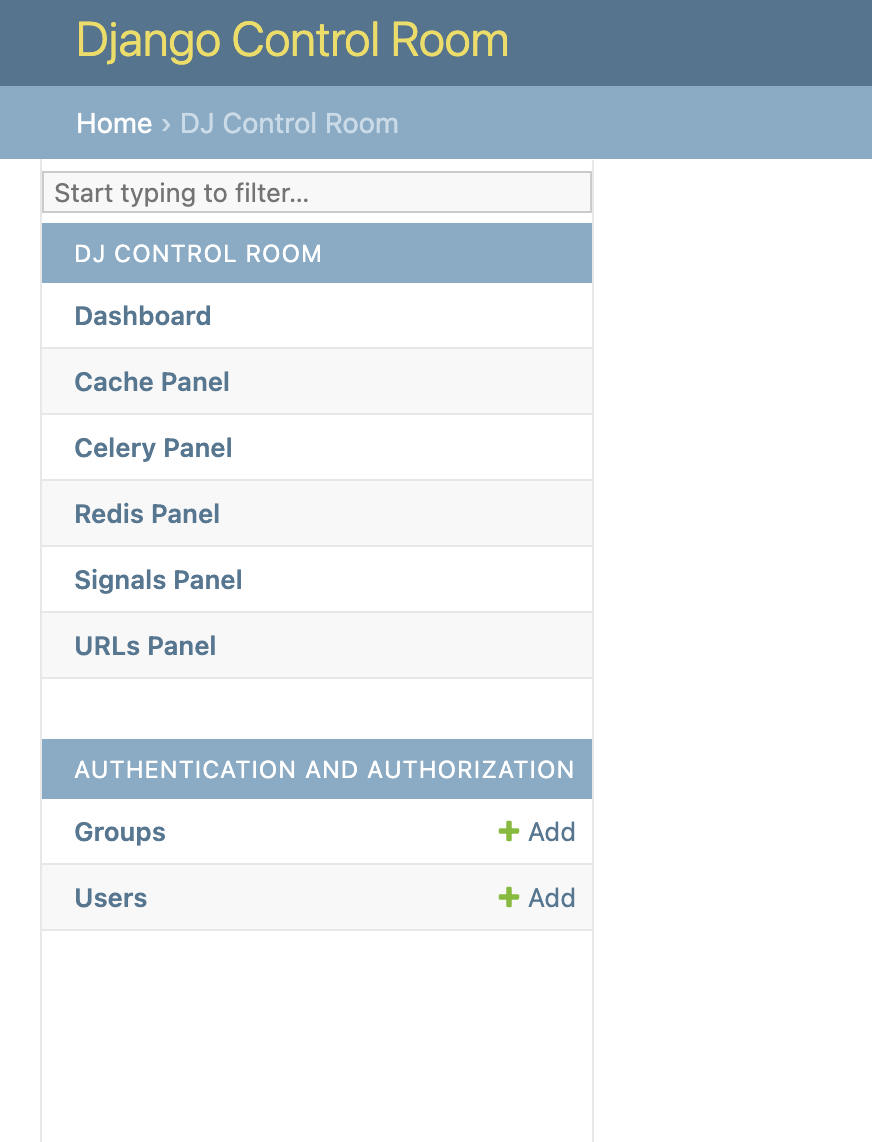
You can change this behavior to show panels in multiple sections.
Global Setting
Control whether ALL panels register in both places:
DJ_CONTROL_ROOM_SETTINGS = {
    # Show panels in both Control Room AND their own admin sections
    "REGISTER_PANELS_IN_ADMIN": True,
}
Result:
Admin Sidebar:
- DJ CONTROL ROOM
  - Dashboard
  - Redis Panel
  - Cache Panel
- DJ REDIS PANEL
  - Redis Panel
- DJ CACHE PANEL
  - Cache Panel
Per-Panel Override
Fine-grained control for specific panels:
DJ_CONTROL_ROOM_SETTINGS = {
    "REGISTER_PANELS_IN_ADMIN": False,  # Default for all
    "PANEL_ADMIN_REGISTRATION": {
        "dj_redis_panel": True,  # Redis shows in both places
        "dj_cache_panel": False,  # Cache only in Control Room
        "dj_urls_panel": True,  # URLs shows in both places
    },
}
Result:
Admin Sidebar:
- DJ CONTROL ROOM
  - Dashboard
  - Redis Panel (also below)
  - Cache Panel (only here)
  - URLs Panel (also below)
- DJ REDIS PANEL
  - Redis Panel
- DJ URLS PANEL
  - URLs Panel
Settings Reference
REGISTER_PANELS_IN_ADMIN
Type: bool
Default: False
Description: Global setting controlling whether panels register in their own admin sections in addition to Django Control Room.
False(default): Panels only appear under Django Control RoomTrue: Panels appear in both Django Control Room and their own sections
PANEL_ADMIN_REGISTRATION
Type: dict
Default: {}
Description: Per-panel override for admin registration. Keys are panel IDs, values are booleans.
Example:
'PANEL_ADMIN_REGISTRATION': {
    'dj_redis_panel': True,   # Override: show in both places
    'dj_cache_panel': False,  # Override: only in Control Room
}
Note: Per-panel settings override the global
REGISTER_PANELS_IN_ADMINsetting.
URL Configuration
Django Control Room expects panels to be mounted with explicit paths under /admin/:
# urls.py
urlpatterns = [
    # Mount panels with explicit paths under admin
    path("admin/dj-redis-panel/", include("dj_redis_panel.urls")),
    path("admin/dj-cache-panel/", include("dj_cache_panel.urls")),
    # Control Room dashboard
    path("admin/dj-control-room/", include("dj_control_room.urls")),
    path("admin/", admin.site.urls),
]
This gives admin-local URLs:
- /admin/dj-redis-panel/ - Redis panel
- /admin/dj-cache-panel/ - Cache panel
- /admin/dj-control-room/ - Control Room dashboard
Static Files
Django Control Room includes CSS, JavaScript, and images in its static files.
Development
Static files work automatically in development:
Production
Collect static files before deployment:
Configure your web server (nginx, Apache) to serve static files from STATIC_ROOT.
Security Considerations
Staff-Only Access
Django Control Room automatically requires staff permissions. Only users with is_staff=True can access the dashboard.
Package Verification
Official Panels (the curated FEATURED_PANELS list) are verified by package origin to prevent malicious packages from hijacking those IDs. This happens automatically - no configuration needed.
Permissions
All panel views should use Django's built-in permission decorators:
from django.contrib.admin.views.decorators import staff_member_required


@staff_member_required
def my_panel_view(request):
    # Your view logic
    pass
Custom Dashboard URL
To change the Control Room dashboard URL:
# urls.py
urlpatterns = [
    # Custom path instead of 'admin/dj-control-room/'
    path("dashboard/control-room/", include("dj_control_room.urls")),
    path("admin/", admin.site.urls),
]
Environment-Specific Settings
Use environment variables for different configurations:
# settings.py
import os

DJ_CONTROL_ROOM_SETTINGS = {
    "REGISTER_PANELS_IN_ADMIN": os.getenv("CR_REGISTER_PANELS", "False") == "True",
}
Advanced: Custom Panel Discovery
By default, panels are discovered via Python entry points. This happens automatically when Django starts.
To manually trigger panel discovery:
from dj_control_room.registry import registry

# Force panel discovery
registry.autodiscover()

# Get all registered panels
panels = registry.get_panels()
Best Practices
1. Keep It Simple
Start with default settings and only customize when needed:
2. Document Your Choices
Add comments explaining why you changed settings:
DJ_CONTROL_ROOM_SETTINGS = {
    # Redis panel needs to be in both places for legacy admin links
    "PANEL_ADMIN_REGISTRATION": {
        "dj_redis_panel": True,
    }
}
3. Test Configuration Changes
After changing settings, verify: 1. Panels appear in expected locations 2. URLs resolve correctly 3. Permissions work as expected
Troubleshooting
Panels Not Appearing
Panels don't show in the expected admin sections.
Solutions:
1. Check INSTALLED_APPS includes both dj_control_room and panel apps
2. Restart Django server after changing settings
3. Clear browser cache
URL Resolution Errors
NoReverseMatch when clicking panel links.
Solutions:
1. Ensure panel URLs are included in urls.py
2. Verify panel's urls.py defines app_name
3. Check panel ID matches app_name
Settings Not Taking Effect
Configuration changes don't apply.
Solutions:
1. Restart Django server
2. Check settings file syntax (valid Python dictionary)
3. Verify settings key is DJ_CONTROL_ROOM_SETTINGS (not DJ_CONTROL_ROOM)