Installation Guide
This guide will walk you through installing Django Control Room and its panels.
Official Site: djangocontrolroom.com.
Basic Installation
Install Django Control Room via pip:
This installs the core Control Room without any panels.
Install with Official Panels
Django Control Room supports installation with optional panel extras:
Install Specific Panels
# Single panel
pip install dj-control-room[redis]

# Multiple panels
pip install dj-control-room[redis,cache,urls]
Install All Panels
Available Panel Extras
| Extra | Package | Description |
|---|---|---|
redis |
dj-redis-panel |
Redis connection manager and key inspector |
cache |
dj-cache-panel |
Django cache backend inspector |
urls |
dj-urls-panel |
URL pattern browser and tester |
celery |
dj-celery-panel |
Celery task monitor |
signals |
dj-signals-panel |
Django signals inspector |
all |
All panels | Install all official panels at once |
Django Configuration
1. Add to INSTALLED_APPS
Add dj_control_room_base (the shared core library), your panel apps, then dj_control_room (so all panels appear under one "DJ Control Room" section in the admin sidebar):
# settings.py
INSTALLED_APPS = [
    # Django built-in apps
    'django.contrib.admin',
    'django.contrib.auth',
    'django.contrib.contenttypes',
    'django.contrib.sessions',
    'django.contrib.messages',
    'django.contrib.staticfiles',

    # Required: shared core library (provides dcr_icons template tags and design system)
    'dj_control_room_base',

    # Panels (add the ones you installed)
    'dj_redis_panel',   # If you installed [redis]
    'dj_cache_panel',   # If you installed [cache]
    'dj_urls_panel',    # If you installed [urls]
    'dj_celery_panel',  # If you installed [celery]
    'dj_signals_panel', # If you installed [signals]

    # Django Control Room (list after panels so they appear in one section)
    'dj_control_room',

    # Your apps
    'myapp',
    # ...
]
Note:
dj_control_room_baseis installed automatically as a dependency ofdj-control-room, but it must also be listed inINSTALLED_APPSso Django can discover its template tag library (dcr_icons) and static assets. If you forget it, you will see a'dcr_icons' is not a registered tag libraryerror and Django's system check will reportdj_control_room.E001.Note: Panels are automatically discovered via entry points, so Django Control Room will detect them even if you install them separately.
2. Configure URLs
Include Django Control Room and panel URLs in your project's urls.py:
# urls.py
from django.contrib import admin
from django.urls import path, include

urlpatterns = [
    # Panel URLs - include each panel you installed
    path('admin/dj-redis-panel/', include('dj_redis_panel.urls')),
    path('admin/dj-cache-panel/', include('dj_cache_panel.urls')),
    path('admin/dj-urls-panel/', include('dj_urls_panel.urls')),
    path('admin/dj-celery-panel/', include('dj_celery_panel.urls')),
    path('admin/dj-signals-panel/', include('dj_signals_panel.urls')),

    # Control Room dashboard
    path('admin/dj-control-room/', include('dj_control_room.urls')),

    # Django admin
    path('admin/', admin.site.urls),
]
Important: Panels are mounted with explicit paths under
/admin/to keep them integrated with Django admin. Each panel appears at its own admin-local URL like/admin/dj-redis-panel/.
3. Run Migrations
Note: Django Control Room itself has no migrations. This step is just for standard Django setup.
4. Collect Static Files (Production)
For production deployments:
Verify Installation
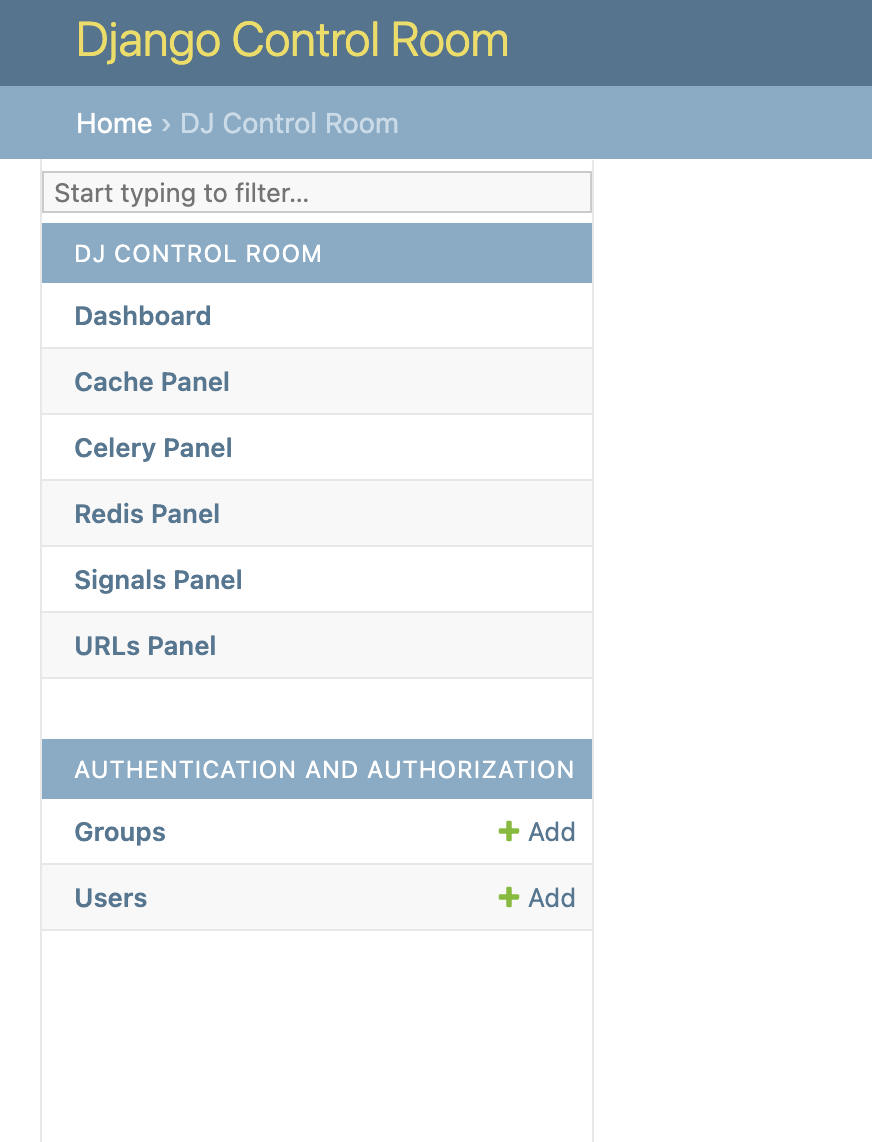
Once installed, your admin sidebar will show Django Control Room with all your panels:
Check Panel Discovery
Verify that panels are discovered correctly:
from dj_control_room.registry import registry

registry.autodiscover()
for panel in registry.get_panels():
    print(f"{panel.name} ({panel.id})")
Access the Dashboard
-
Start your development server:
-
Navigate to:
http://127.0.0.1:8000/admin/dj-control-room/ -
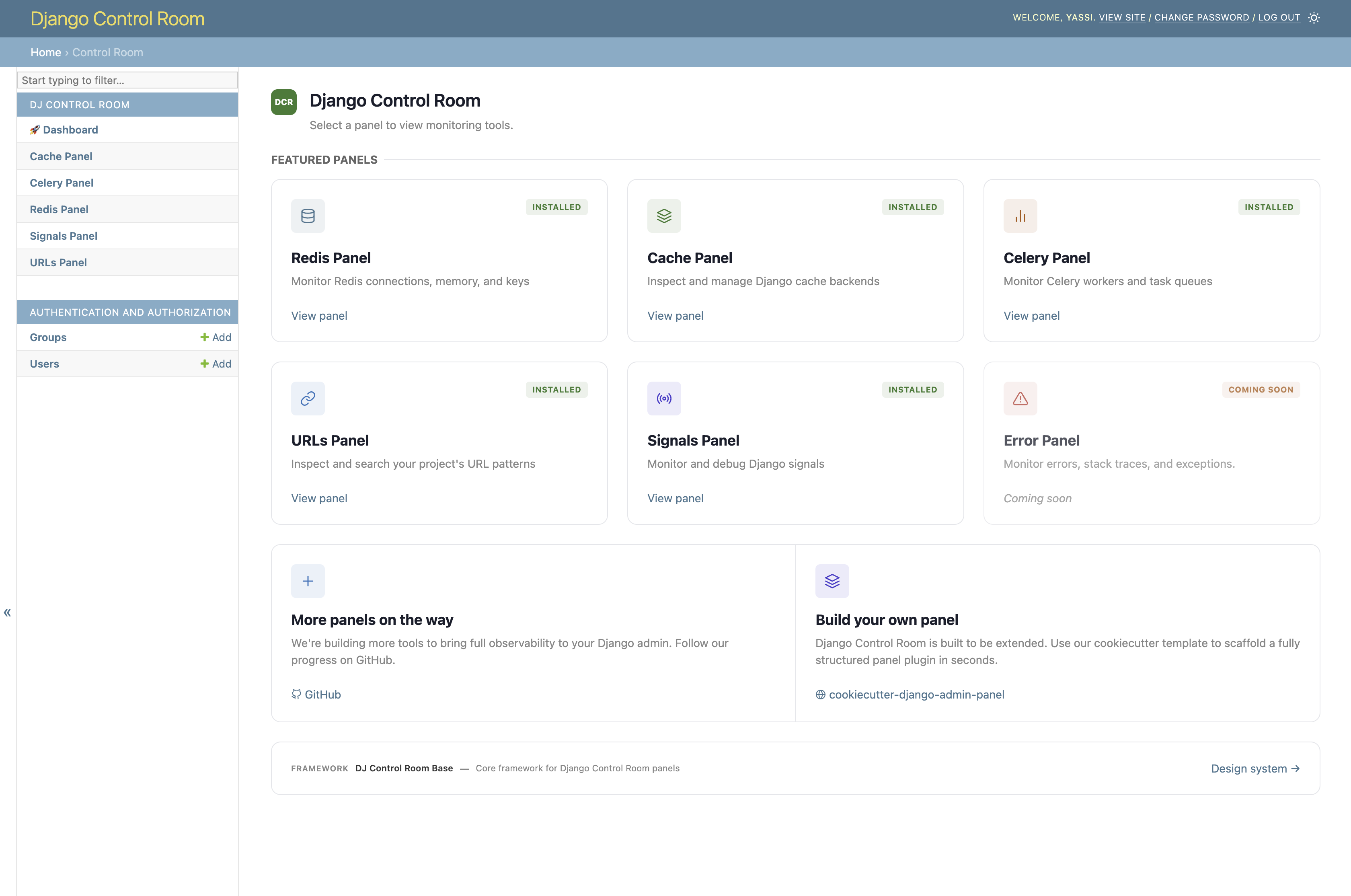
You should see the Control Room dashboard with your installed panels:
Troubleshooting
Panels Not Showing Up
If panels don't appear in the dashboard:
- Check INSTALLED_APPS - Ensure both
dj_control_roomand the panel apps are inINSTALLED_APPS - Check URLs - Verify panel URLs are included in your
urls.py - Restart server - Django may need to be restarted to discover entry points
- Check installation:
'dcr_icons' is not a registered tag library
This error means dj_control_room_base is not in INSTALLED_APPS. Django only discovers template tag libraries from installed apps. Fix it by adding 'dj_control_room_base' to INSTALLED_APPS as shown in the configuration step above.
Running python manage.py check will also report this as dj_control_room.E001 with a descriptive hint.
URL Resolution Errors
If you get NoReverseMatch errors:
- Ensure panel URLs are included at root level (not nested)
- Check that panel's
urls.pydefinesapp_namematching the panel ID - Verify URL patterns in panel's
urls.pyinclude anindexview
Package Not Found
If pip can't find the package:
- Check PyPI - Ensure the package exists: https://pypi.org/project/dj-control-room/
- Update pip:
- Try direct install:
Next Steps
- Configuration Guide - Learn about available settings
- Scopes - Permission scopes and access control
- Creating Panels - Build your own panels
- API Reference - Detailed API documentation
Upgrading
To upgrade to the latest version:
To upgrade with panels: